
Happy Easter!
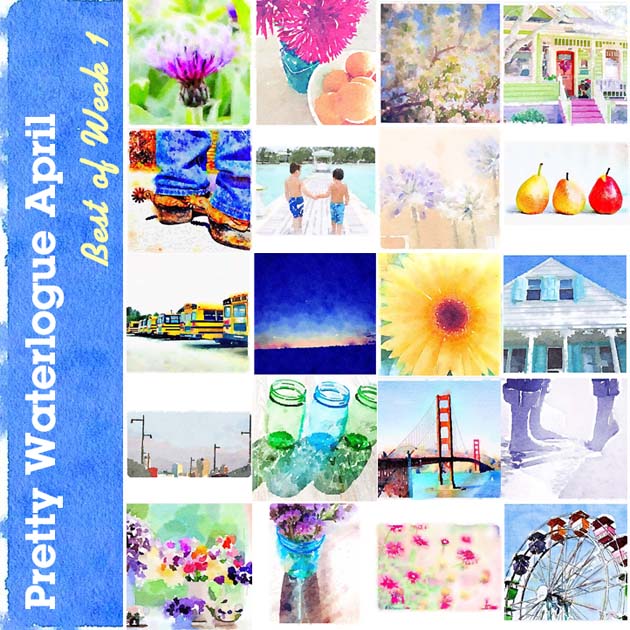
Once again, you amazing Waterlogue artists have amazed me. And again, I was tasked with narrowing down my 100+ favorites this week to 20. Perhaps it is from Spring in the air or Easter, but I was definitely drawn to some seasonal beauties.
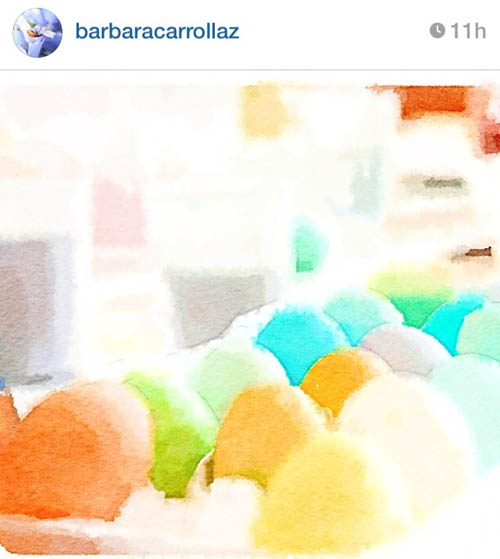
*Like these colored eggs by BarbaraCarollaz
Before we get to the showcase this week, I wanted to give you the details on the giveaway I have for you at the end of this month. Anyone who has participated in the challenge (whether you’ve been featured or not) will be eligible. I will chose one winner at random who will get to take home this fabulous prize pack:
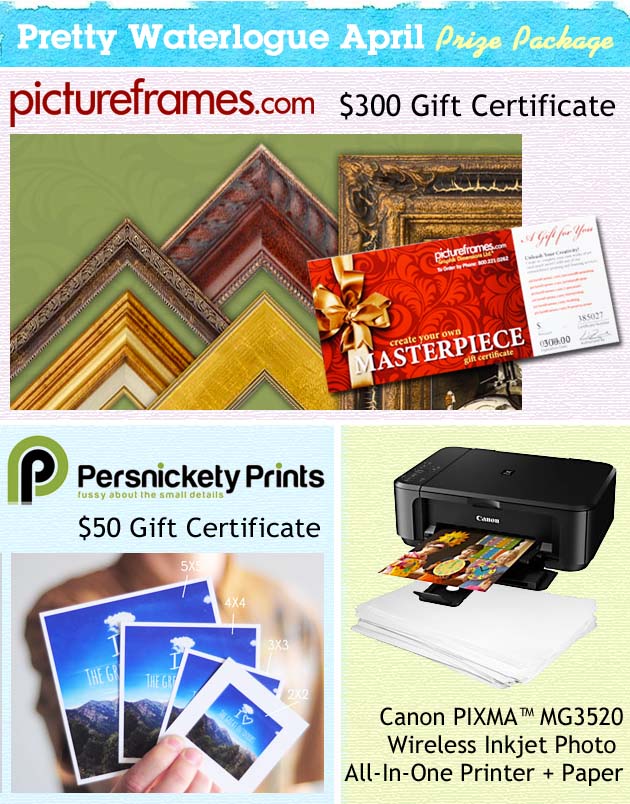
PictureFrames.com – $300 Gift Certificate
Picture frames galore! This one stop online framing shop has it all. Preview your image in their Personal Frame Shop so you can test drive the mat and frame of your choice. Or create your own framed chalkboard, bulletin board or mirror from their wall décor option. PictureFrames.com was generous enough to donate a $300 gift certificate so you can have your PrettyWaterlogueApril masterpiece(s) showcased in your home. Don’t feel obligated to choose one of your Waterlogue images, you could use the gift certificate however you want. Why not frame that painting that you’ve wanted to frame but for whatever reason you never got around to it. I’ve used PictureFrames.com for many years and know you’re going to love their styles, service and products!
PersnicketyPrints – $50 Gift Certifcate
Persnickety Prints is your destination for printing your masterpieces! You can select your own digital paintings or photos to be printed for scrapbook prints, calendars, cards, photo books, gifts and much more. The print selections are amazing. From photographic prints, cardstock printing on up to artist quality giclée prints! Plus, you can import your entire Instagram gallery with the click of a button! Founded by Chari Pack, this small business encompasses the customer friendly and attention to detail that you want when you upload your favorite images. Persnickety Prints has graciously offered a $50 gift certificate to use at their online store. You’ll have so much fun browsing the options. Be sure to check out their easy Instagram printing for starters and then discover all the other ways you can bring your online Waterlogue masterpieces to life!
+ Continue to bring color into your life with a new Canon PIXMA MG3520 color printer and photo paper. This printer is perfect for your home and is easy to connect with wifi.
And now, the paintings I’ve chosen this week: Read more